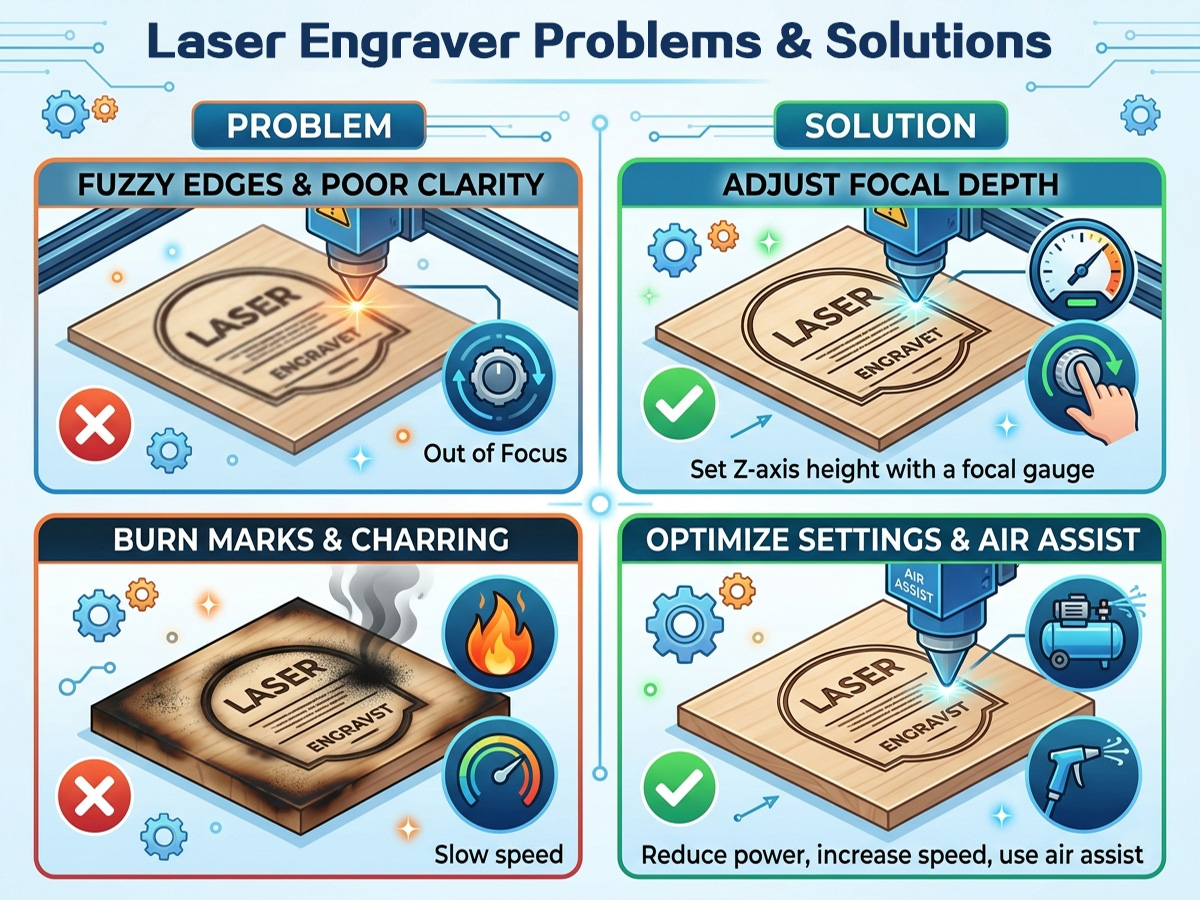
Laser engraving technology is a high-precision processing solution widely adopted in modern industrial manufacturing. It delivers outstanding accuracy and stable processing effects for various production tasks. Standard operation and systematic daily maintenance are two core factors that ensure long-term stable operation of laser engraving devices and reduce equipment failures.
Even with proper daily use, laser engraving machines are prone to various malfunctions during long-term operation. To help users quickly locate faults and complete efficient repairs, this article sorts out 19 common laser engraver failures in actual production, with detailed cause analysis and practical one-to-one solutions for each problem.
Fault 1: Laser No Light Output
Solutions
- Press the test button on the control panel and check the ammeter status:
- No current display: Verify the laser power supply status; check for loose or disconnected high-voltage cables and signal wires.
- Normal current display: Inspect for damaged optical lenses and severe optical path offset.
- Check the operating condition of the water circulation system:
- No water flow: Confirm whether the water pump is faulty or unpowered.
- Normal water flow: Check for reversed water inlet/outlet installation or cracked water pipes.
- Self-test works normally but no laser light after data transmission: Calibrate and correct computer software parameter settings.
- Inspect the magnetic switches and connecting lines of the equipment shell and front door for looseness or disconnection.
Fault 2: Inconsistent Engraving Depth or No Engraving Depth
Solutions
- Ensure unobstructed water circulation; straighten bent water pipes and replace damaged pipes.
- Check and readjust the focal length to the standard parameter range.
- Calibrate and correct the deviated optical path.
- Adjust processing parameters if the workpiece protective film is too thick or the material contains excessive moisture.
- Check beam parallelism and adjust the tension of belts on both sides.
- Replace broken or scratched optical lenses.
- Thoroughly clean contaminated lenses and laser tubes.
- Replace circulating water when the water temperature exceeds 30℃.
- Fasten loose laser heads and focusing lenses.
- Adjust laser current intensity to the standard 8mA working value.
- Replace aging laser tubes with insufficient power.
Fault 3: Distorted Engraved Characters
Solutions
- Replace severely worn laser head pulleys that cause unstable laser head movement.
- Adjust the rear fixing screws of the Y-axis to balance the tension of left and right Y-axis belts.
- Replace the worn driving wheel on the X-axis left side.
- Replace faulty X-axis motors.
- Tighten the loose fixing screws between the X-axis motor and pulley.
Fault 4: Abnormal Reset Function
Solutions
- Clean dust on the sensor; replace damaged sensors with poor contact.
- Trim or replace faulty flexible data cables with poor signal transmission.
- Reconnect the grounding wire firmly or replace damaged high-voltage lines.
- Troubleshoot poor contact of motor connecting wires.
Fault 5: Incomplete Laser Engraving & Missing Patterns
Solutions
- Correct incorrect system initialization data and reimport parameters.
- Reverse wrong operating sequence and re-output processing data.
- Eliminate static interference by checking and reconnecting the grounding wire.
Fault 6: Offset & Unclosed Scanning Tracks
Solutions
- Check and re-edit incorrect design files.
- Reselect processing patterns that exceed the machine working area.
- Reset incorrect software operation parameters.
- Reinstall the computer operating system and engraving software for system errors.
- Tighten loose synchronous belts and rear end belts.
- Adjust slipping or tooth-jumping synchronous wheels and belts.
- Calibrate beam parallelism and adjust bilateral belt tension.
Fault 7: Computer Fails to Send Data to Laser Engraver
Solutions
- Restore abnormal software parameters to factory defaults.
- Complete equipment positioning first, then re-output processing files.
- Reset the machine if pre-operation reset is omitted.
- Unify the software serial port setting with the actual equipment port.
- Reconnect the grounding wire to eliminate static interference on data transmission.
- Replace the computer serial port for testing.
- Reinstall engraving software and reset parameters.
- Format the system disk and reinstall relevant software.
- Repair or replace the damaged motherboard serial port.
Fault 8: System Fails to Calculate Processing Path
Solutions
- Verify the correctness of custom processing path parameters.
- Confirm the imported graphic file format is compatible.
- Uninstall and reinstall the engraving software, then reset configuration parameters.
Fault 9: Common Computer System Malfunctions
Solutions
- Reinstall the operating system if system fonts are missing or abnormal.
- Wait for system calculation or upgrade computer memory when oversized data causes path calculation failure.
- Restart the computer if the path calculation program freezes for a long time.
Fault 10: Invalid Advanced Setting Parameters
Solutions
- Remove the read-only attribute of Laser_cn and sysCfg files first, then configure parameters according to the actual equipment condition.
- Restore the read-only attribute of the two files after parameter configuration; do not modify advanced settings arbitrarily.
Fault 11: Engraved Size Inconsistent with Design Graphics
Solutions
Open the advanced configuration interface:
- Verify whether the motor step parameter matches the actual machine step size (Calculation formula: pulley circumference / 200, unit: mm).
- Ensure the segmented parameter is consistent with the driver’s segment setting.
- Due to different scaling factors between CorelDraw 9.0 and 11.0, use only one version stably; adjust size deviation via motor step parameters.
Fault 12: Misaligned Edge Scanning Engraving
Solutions
- Draw standard rectangles/squares, set layer mode to engraving with 0.5mm step. Normal effect presents staggered alignment of odd and even scanning lines; fine-tune parameters if edge dislocation occurs.
- In advanced configuration, adjust the positive/negative "early light" parameter (default 0) at different engraving speed groups according to actual dislocation conditions.
- Enable one-way engraving mode and turn off S-shaped scanning to optimize engraving accuracy, which will slightly reduce working efficiency.
Fault 13: Misalignment Between PLT Vector Graphics and BMP Images
Solutions
Dual-process of BMP engraving and PLT cutting often causes alignment errors. The optimal solution is to center PLT graphics and BMP images in CorelDraw respectively, then export and import them into the engraving system separately.
Fault 14: No Data Output After Pressing Start Button
Solutions
When processing small graphics, the software may delay response after pressing Start, which is an anti-misoperation protection mechanism. Users can wait briefly for automatic recovery. If affecting production efficiency, increase the repetition count in data output settings and set reasonable delay time.
Fault 15: Wrong Engraving Content & Pattern Chaos
Solutions
- Confirm the design file is correct.
- Check normal computer operation.
- Verify matching between engraving software and encryption card.
- Ensure processing patterns do not exceed the machine layout range.
- Eliminate external signal interference.
- Check the integrity and firmness of the grounding wire.
Fault 16: Laser Engraver Fails to Start Working
Solutions
- Check reliable connection of serial port lines between computer and engraving machine.
- Swap serial port 1 and 2 to solve port conflict problems.
- Keep software output port settings consistent with actual hardware connection.
Fault 17: Laser Engraving Efficiency Improvement Methods
Solutions
For mass production of small-size standardized workpieces (e.g., 75×25mm nameplates), limit the X-axis maximum width within 300mm to accelerate laser head reciprocating movement. Reduce bitmap resolution to speed up graphic engraving. Match laser power and speed reasonably: increase speed and power synchronously under qualified engraving depth to shorten processing time.
Fault 18: Material Waste Prevention Skills
Solutions
All standard laser engravers are equipped with red light positioning function. For irregular workpieces, use red light positioning to confirm engraving position before formal processing. For new and unknown materials, adopt the processing principle of low power to high power gradient test.
Fault 19: Daily Maintenance Specifications for Laser Engravers
Solutions
- Install laser tube support points reasonably at 1/4 of the total tube length. Unreasonable installation causes distorted light spots, reduced laser power and frequent equipment failure.
- Regularly clean the water protection system. Do not use short-circuit processing for unreset float switches. Replace cooling water regularly and clean water pumps and pipes to avoid laser tube cracking and cold head falling off caused by dirt accumulation.
- Ground the cooling system reliably, clean water tanks and pipelines regularly, and set reasonable refrigeration temperature. Improper temperature control causes condensation, power attenuation, shortened laser tube service life and equipment damage.
- Regularly inspect focusing lenses and reflective mirrors. Replace lenses with discoloration, mildew, cracking and peeling. Equip air-assisted devices to solve lens water accumulation problems.
- Ensure stable grid power supply and good contact of all equipment components. Fans, coolers, laser power supplies and computers need independent power supply.
- Avoid long-term operation under 90%-100% laser intensity to prevent laser tube aging. Keep the optical system clean. Adjust the working intensity to 50%-60%, and match the running speed according to materials to maintain the best equipment working state.